 CargaLive
CargaLive on CarPlay
The chargers near you, on the car's screen: with their power, their connectors and the status the community has checked. Pick one and navigation starts.
CarPlay comes inside the CargaLive app for iPhone, coming soon to the App Store. In the meantime, CargaLive works in the browser and installs as an app.
What you see on the car's screen
Right where you are when the problem comes up, with the same data as on your phone.
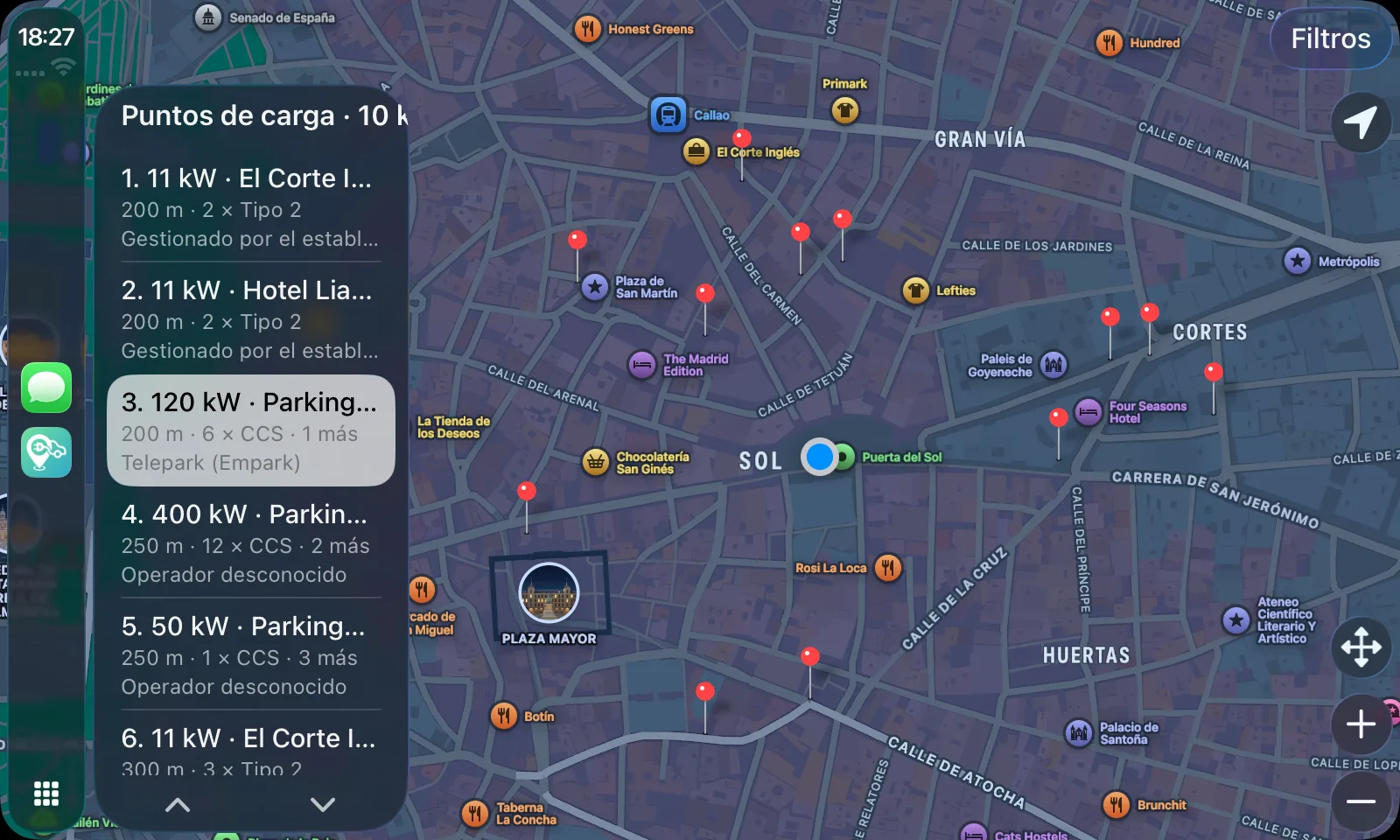
- A map with cards for the nearby chargers, sorted by distance. CarPlay shows at most the 12 nearest that match your filters: it's an Apple limit, and a welcome one.
- Power comes first on every card, and below it the connectors and how many sockets there are (“4 × CCS · 1 more”): that is what decides whether the stop is worth it.
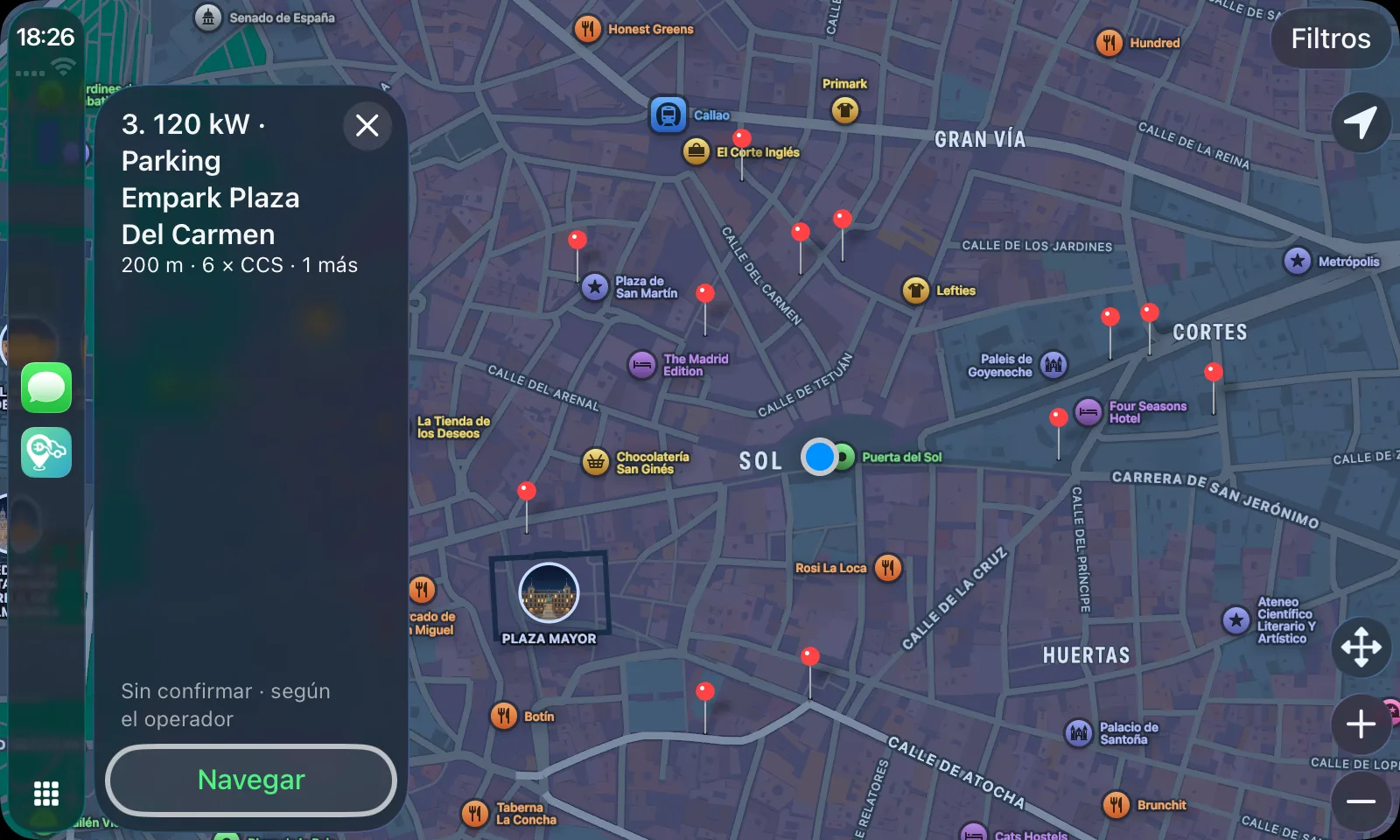
- One tap opens the details with the big map and the “Navigate” button, which opens navigation in Apple Maps. So you see where it is before you set off.
- The map can be explored. Drag it to look for chargers somewhere else and get back to your position with one tap.
- Real location of the car. If for whatever reason there is no GPS, the title says so: “approx.”.
Filters designed for driving
On CarPlay the filters live on a separate screen, because Apple does not allow buttons over the map. There are only three, on purpose: Apple is strict about settings screens in the car, and the rest, single connector, operator, stays on the phone.
Your car
If you have an active car in the app, the list only brings what its plug accepts, and it comes switched on: you already chose that vehicle. Of the two minimum powers, your car's and the filter's, the stricter one wins: asking for 150 kW with a 50 kW car means you only want the fast ones, not that we lower the bar.
Radius
5, 10 or 25 kilometres around you.
Minimum power
Any, 50 kW and up, or 150 kW and up.
What it does on purpose
A charger that does not work and a list that looks complete without being so send someone with a low battery to the wrong place. So:
- Green is reserved for what the community has checked. A charger nobody knows anything about is not painted as available: it is shown as unconfirmed.
- Broken chargers are not hidden. They carry a warning and a red pin: someone was there and reported it, which is exactly what you want to know before taking a detour.
- No keyboard and no long lists while driving. Searching by name is done on the phone, parked.
- No ads on the car's screen.
- Your car, your filters and your language are shared with your phone. Nothing to set up twice.
What you need
- An iPhone with the CargaLive app.
- A car or head unit that supports Apple CarPlay, wired or wireless.
- That's it: when you connect the iPhone, CargaLive shows up among the car's apps. There is nothing to set up.
Frequently asked questions
Is CargaLive a navigation app on CarPlay?
No. It's a charge point app: it shows you where the chargers are and, when you pick one, hands navigation over to Apple Maps. So you don't have to learn another navigator in the car.
Why do I only see chargers for my connector?
Because you have an active car in the app and the car filter is on by default: you already chose that vehicle, and asking you again while driving would be repeating a decision already made. The “All” switch turns it off, because in a pinch a charger with an adapter beats being stranded.
Why is a charger grey and not green?
Because nobody has checked that it works. Green is reserved for what the community has confirmed; what only the operator says is shown as “unconfirmed”. A charger the community reports as broken carries a warning and a red pin, and is not hidden.
Can I report a charger's status from the car?
No. On the car's screen you look things up and navigate. Reporting is done from your phone, parked and standing at the charger, which is when the information is worth something.
What language is it in?
Spanish, Catalan and English, in the language you chose in the app.
Start with the map
No sign-up and nothing to download. If you like it, install it from your browser.